The drawing is the master.

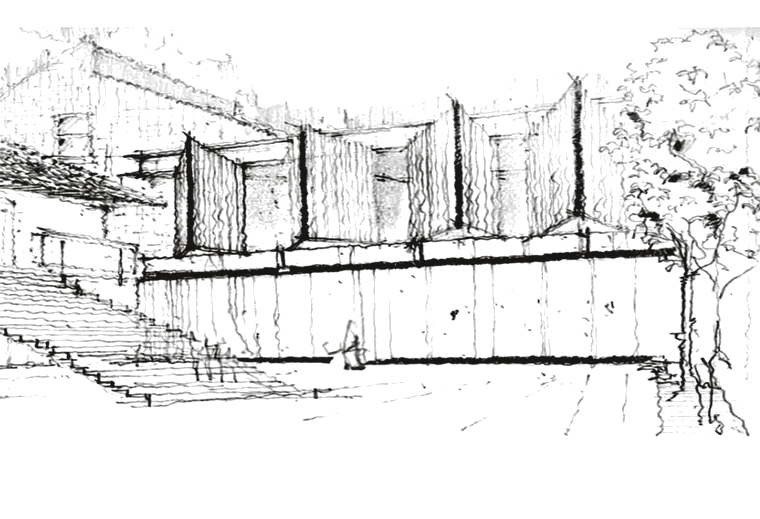
Plate 01Study 08, a slab over a rock pool. Pen on paper, photographed and imported. A note in blue steers the render — it is read, never drawn.
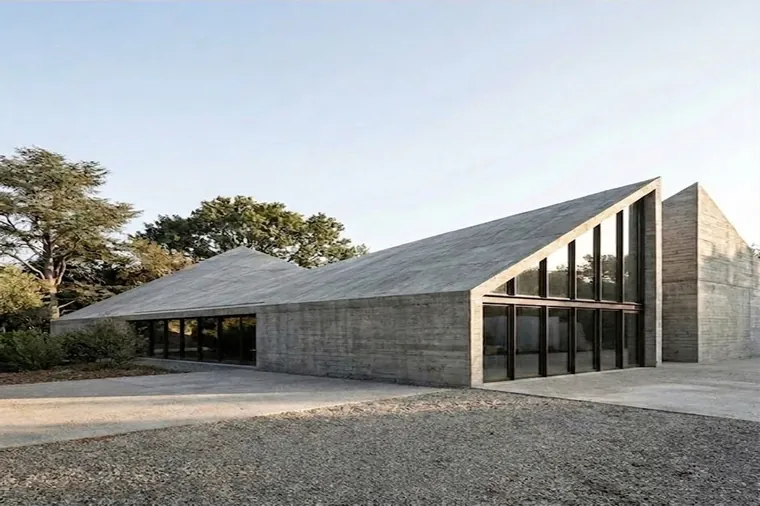
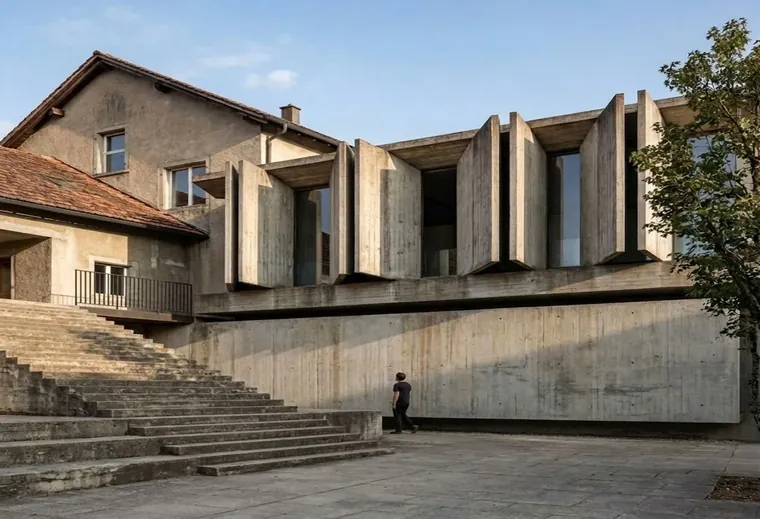
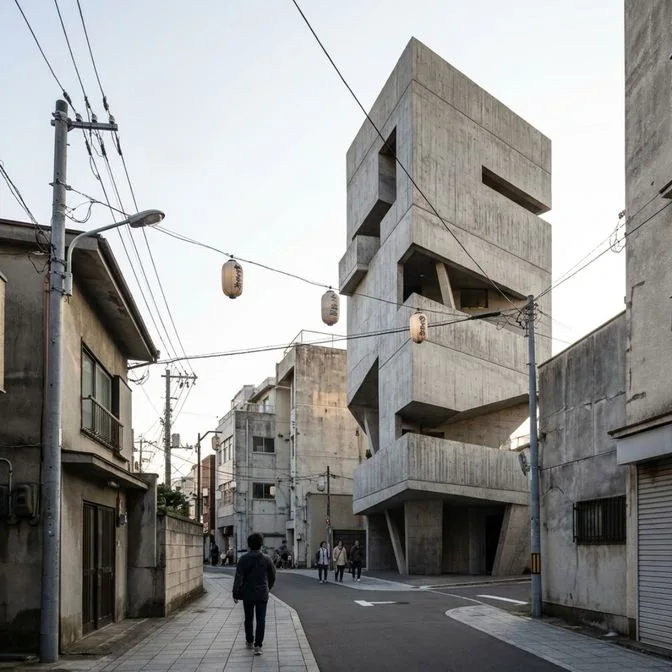
The Brutalist turns an architect’s hand sketch into a photorealistic render in about twenty seconds. The render follows your lines — same building, same proportion, same viewpoint. It never invents a different building.
The render follows the pen.
One sketch and the render made from it, each shown whole.

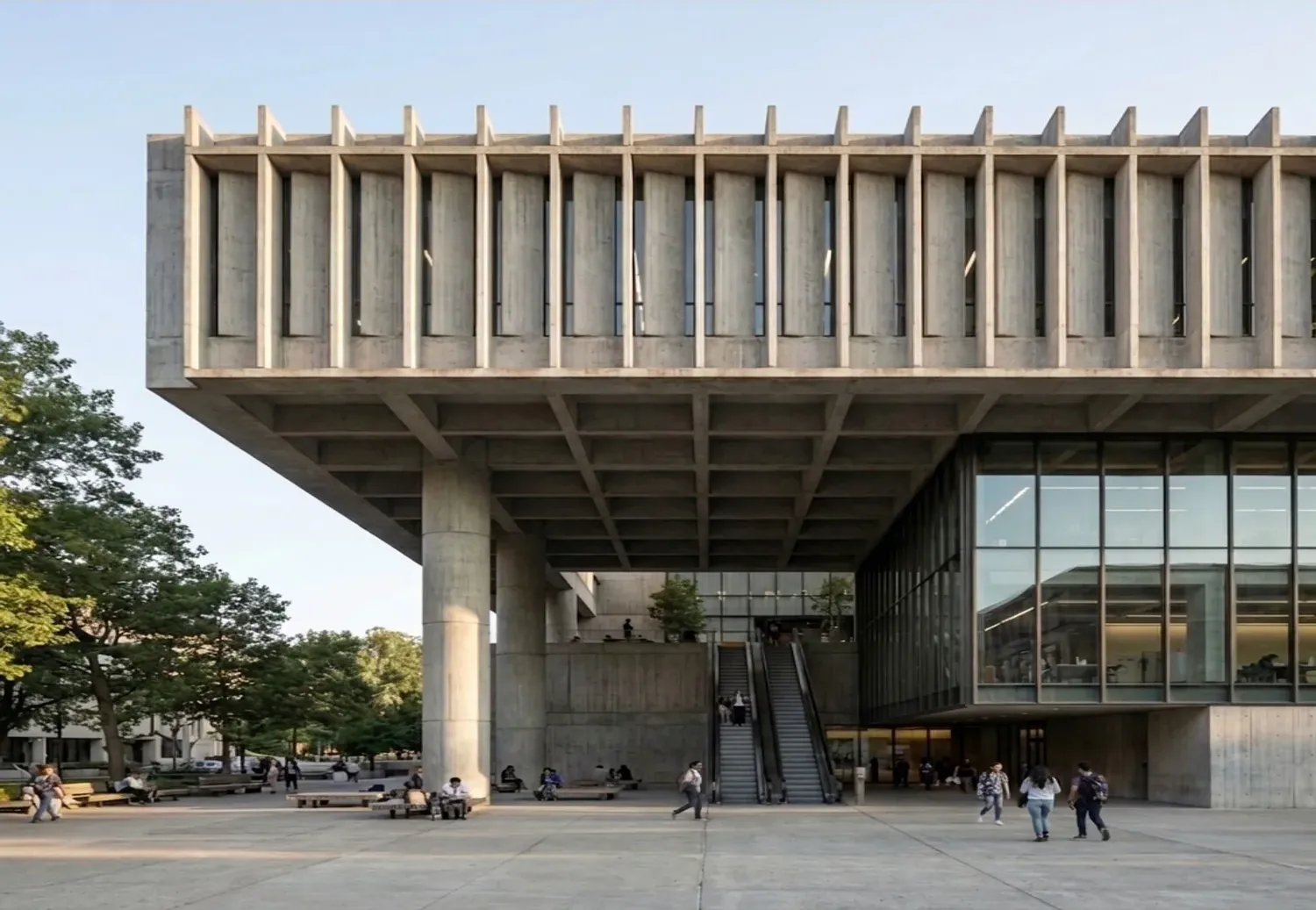
Draw the massing with a pen on a tablet — or import a photo of a paper sketch, or paste a view from your 3D model — and tap Generate. What comes back is your building, in the proportion of your drawing, seen from your viewpoint.
- Project
- The Brutalist
- Price
- A$49 a month
- Renders
- 10 free, no card needed
- Per render
- About 20 s
- Download
- 2K · 2048 px
- Runs in
- The browser · Android on Google Play
- Made by
- Jahrom Sorage, architect, Sydney
Your lines are never redrawn.
Each pair is one sketch and the render made from it. The building, the proportion and the viewpoint are the ones on the page.
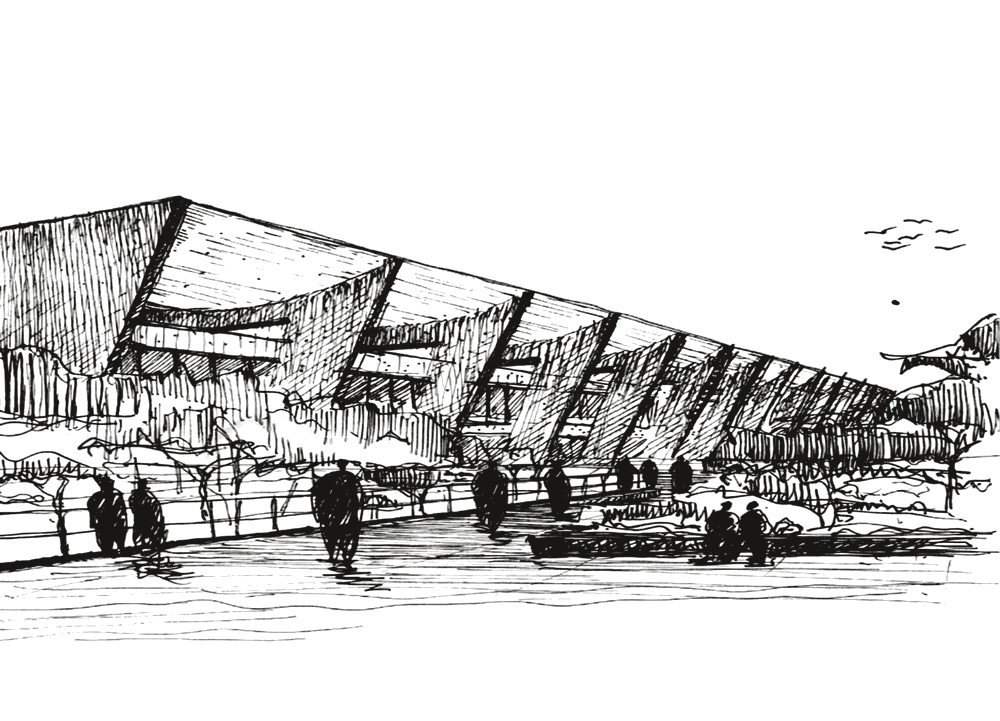
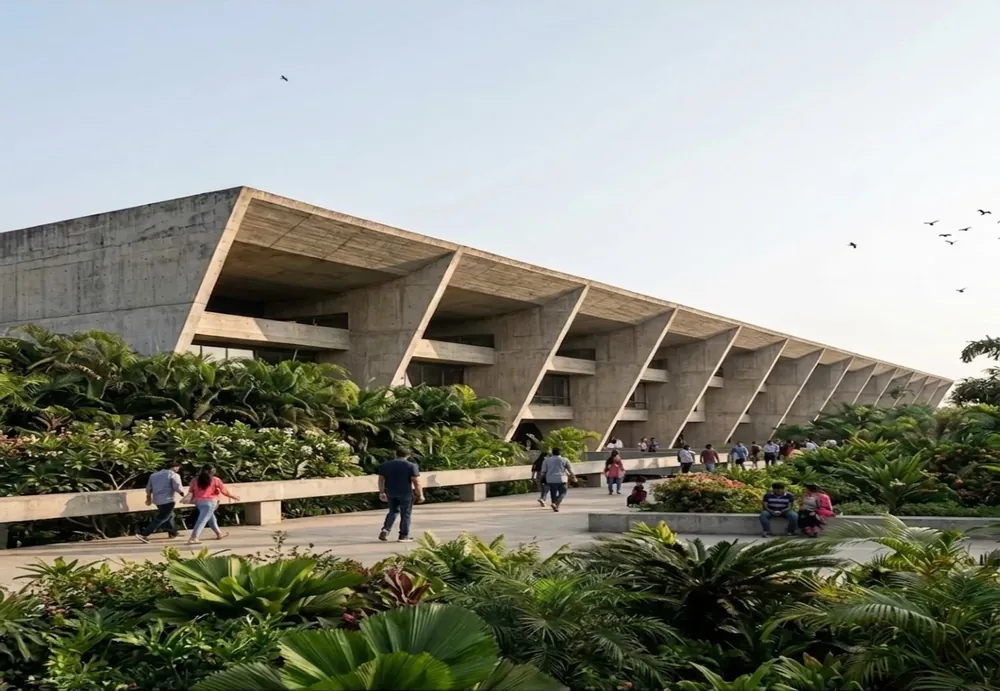
Your lines are never redrawn.
Each pair is one sketch and the render made from it. The building, the proportion and the viewpoint are the ones on the page.
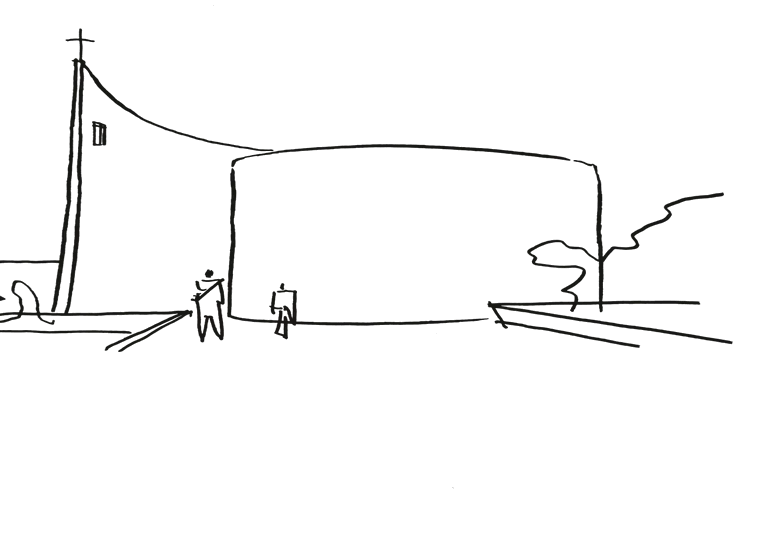
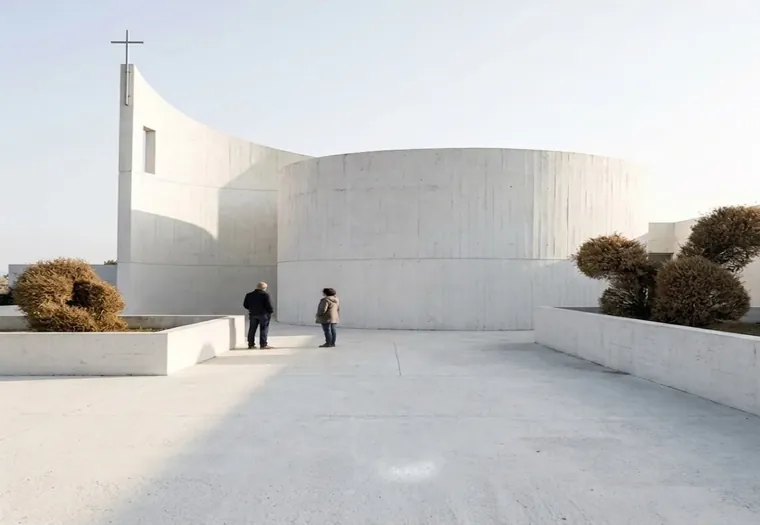
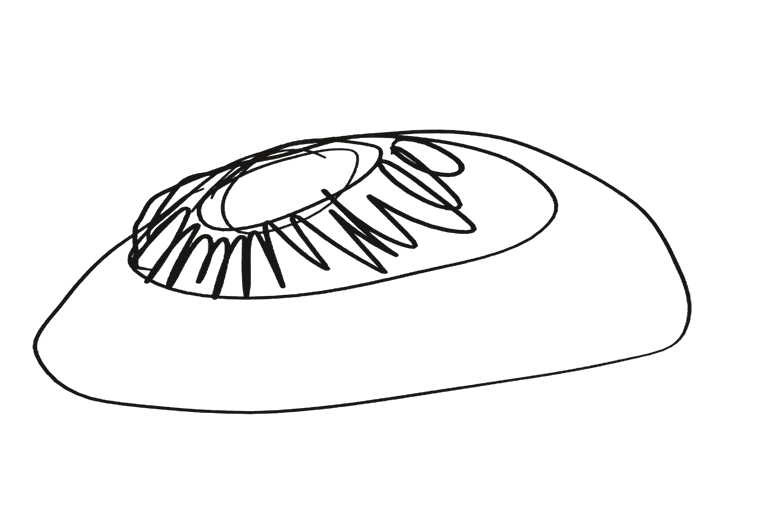
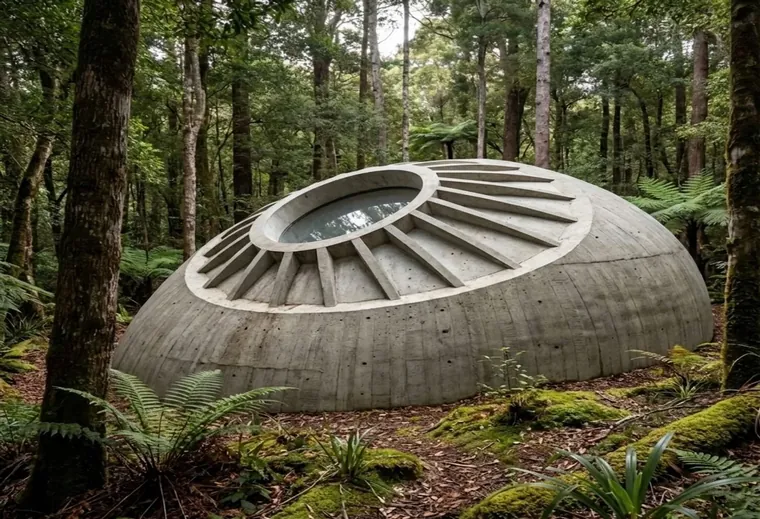
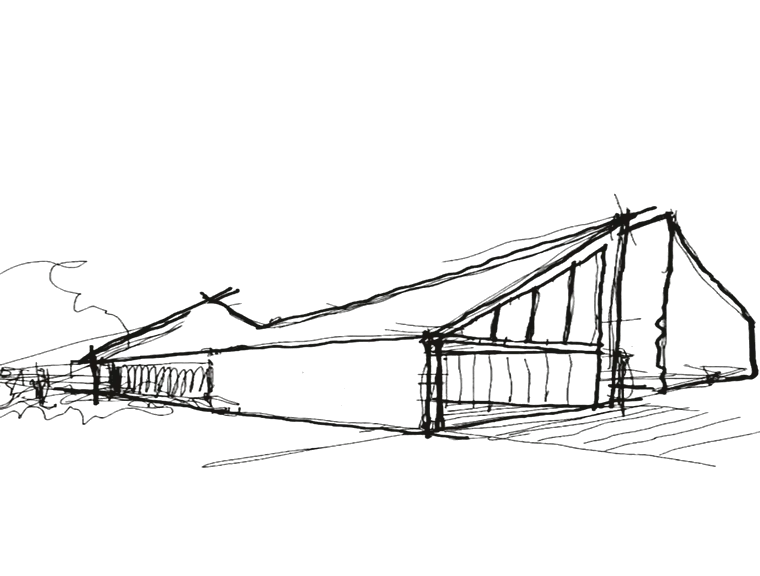
Six moves, one drawing, one session.
- Blackthe pen: it draws the building.
- Bluea note on the sketch: it steers.
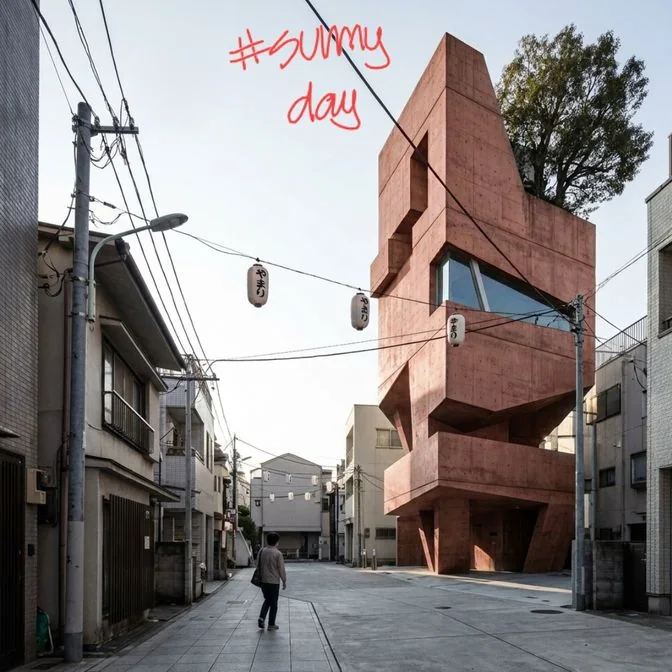
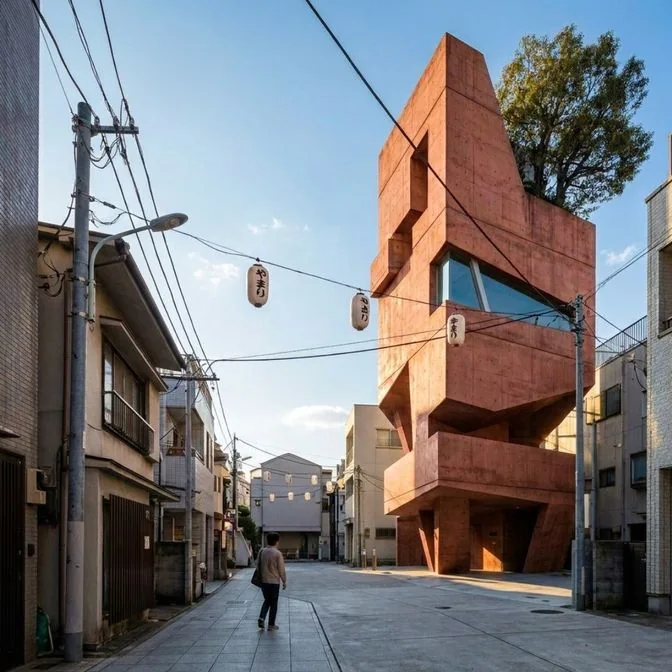
- Reda note on the render: it edits.
Notes are direction, not drawing. The renderer applies them but never draws them. A “#” sets the whole scene; arrows and words target a spot. The sketch in this session is by Trí Núi (Hữu Trí).

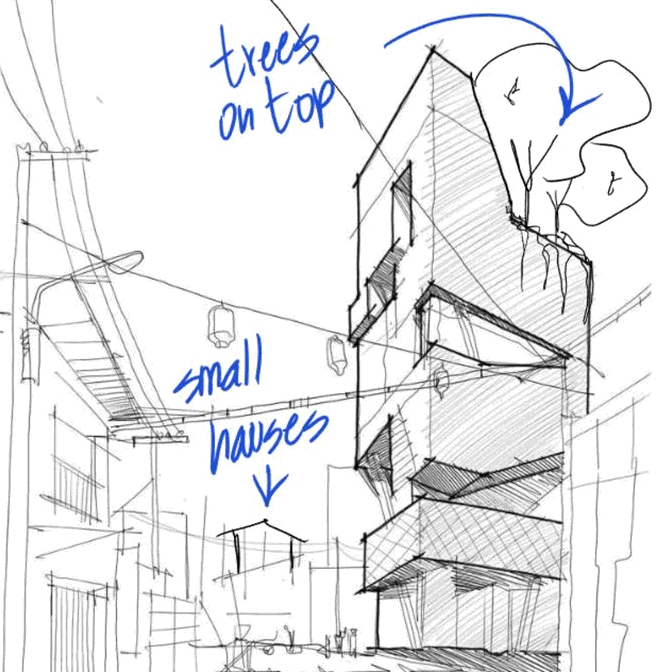
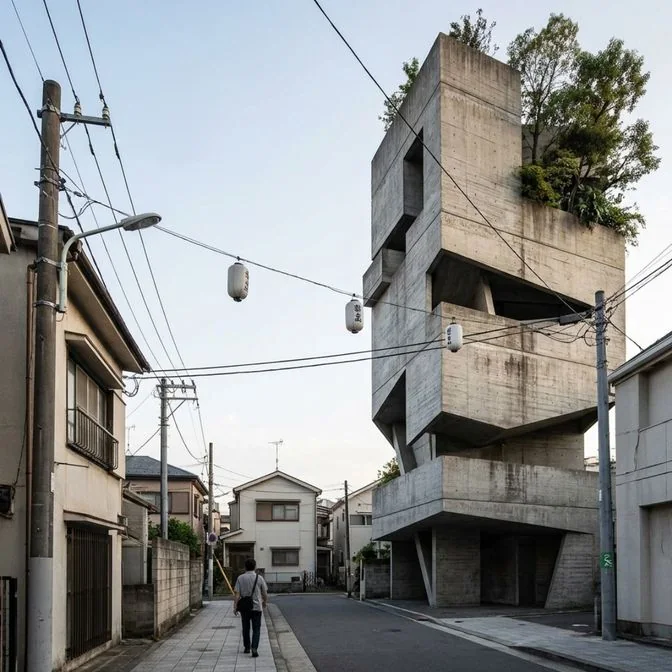
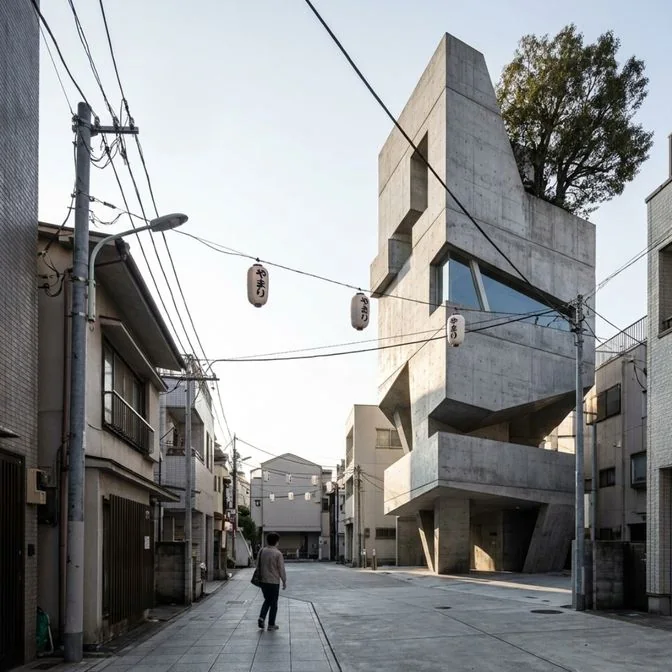
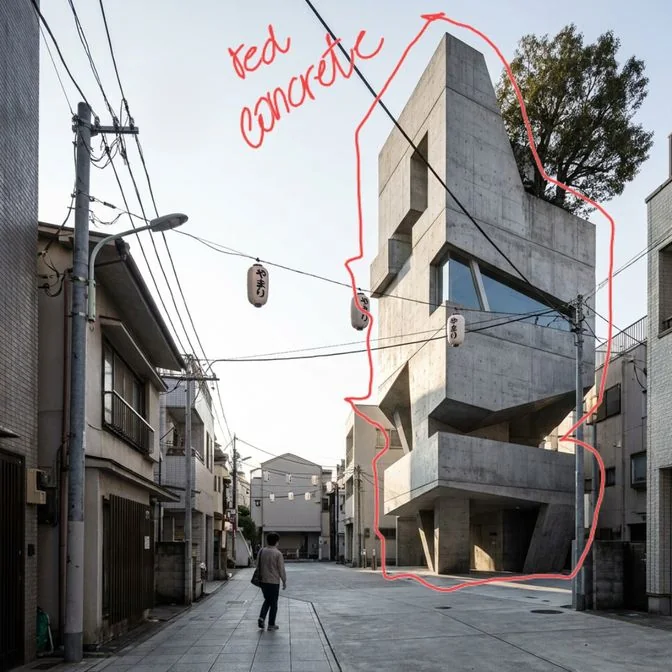
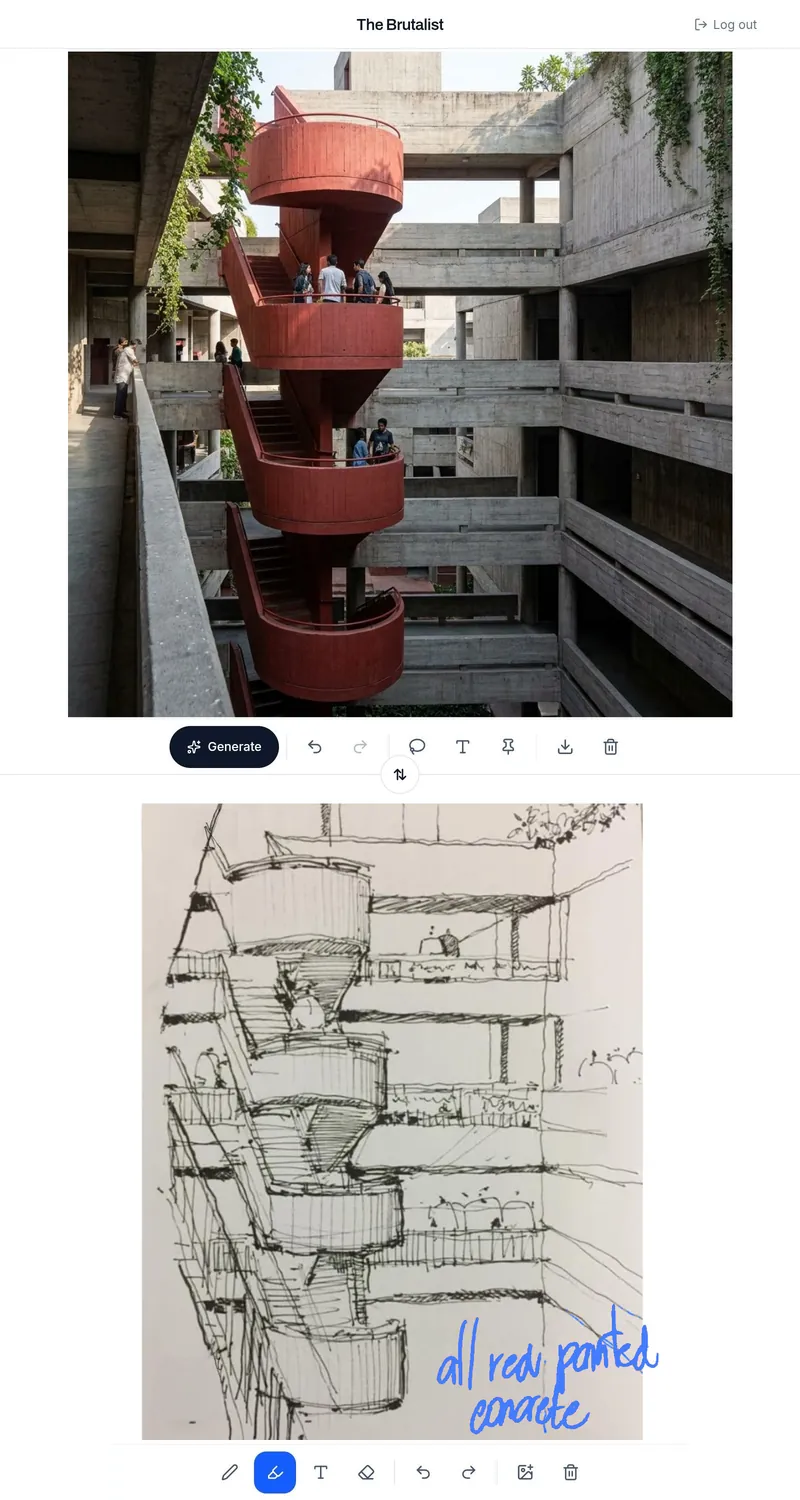
Ten instruments.
Five on the sketch, five on the render. A note lands in its tool’s colour: blue on the sketch, red on the render.

| 01 | Pen | Black lines: the building. Tap it again to set the thickness. |
| 02 | Blue pen | Notes on the sketch, by hand. Read, never drawn — they steer the geometry. A “#” note sets the scene; “#interior” or “#isometric” changes the view. Specimen · Plate 09, frame 03 Specimen · Plate 09, frame 03 |
| 03 | Type | The same note, typed — handy on a desktop, or when handwriting is hard to read. On both panels. |
| 04 | Eraser | Removes pen and blue strokes, at twice the pen width. |
| 05 | Import | A photo of a paper sketch (its text won’t show), an image file, or a screenshot pasted from the clipboard — a view from SketchUp, Rhino or Revit works. |


| 06 | Generate | Renders the sketch in about 20 seconds, in the same proportion as the drawing. |
| 07 | Edit | Circle an area on the render and write the change in red, by hand or typed: material, colour, people, weather. Only that part updates; a “#” alone restyles the whole scene. Specimen · Plate 09, frame 05 Specimen · Plate 09, frame 05 |
| 08 | Pin | Holds the look and keeps generating: close variations, never the same image, until it’s the one. |
| 09 | Download | Saves the render to your device at 2K, 2048 px. |
| 10 | Swap | Flips the sketch and render panels. |
Unnumbered: undo, redo, clear.
In plain terms
“A fast concept tool — not a final visualization. Explore massing and ideas instantly, then take the direction into your full pipeline.”
Your work stays yours
Sketches and renders are never stored on our servers. They live only in your session: discard a render or close the app and it’s gone for good. The only copy that exists is the one you choose to download to your own device.
Made by an architect, for architects
Jahrom Sorage is a practising architect in Sydney. He built The Brutalist for the concept stage, when a massing idea needs to be seen before anyone models it.
Draw something.
Ten renders free, no card needed — then A$49 a month. It runs in the browser — on a tablet with a pen, on a desktop with a mouse — and in the Android app.